How to transcribe a meeting with Copilot: in a Microsoft Teams meeting, open More actions, choose Transcribe, confirm the spoken language, then select Confirm. That starts a live transcript with speaker names and timestamps. If you also have a Microsoft 365 Copilot license, open Copilot in the meeting controls to ask questions in real time, then return to the Recap tab after the call for summaries and a downloadable .docx or .vtt file.
Transcription and Copilot are related but not the same thing. Teams can save a transcript when your org's meeting policy allows it. Copilot's meeting AI needs a separate Copilot license, and, for anything you want to ask after the call ends, a transcript that was started during the meeting. This guide walks through both paths, how to summarize meeting notes in Copilot, and when a dedicated note taker such as Otter or Granola is a better fit. Steps were checked against Microsoft Support and Microsoft Learn on October 15, 2026.
Transcription vs Copilot in Teams
Before you hunt for a button, separate two features Microsoft documents side by side:
| Item | Live Teams transcription | Copilot in Teams meetings |
|---|---|---|
| What you get | Real time text of what people say, with speaker labels | Private prompts, summaries, action items, and Q&A over the discussion |
| License | Eligible Microsoft 365 / Teams plan with transcription policy On | Microsoft 365 Copilot addon (or a plan that includes it) |
| Needs a saved transcript? | It is the transcript | Required for During and after use and for post meeting prompts |
| Who sees it | Participants see a "being transcribed" notice | Your Copilot chat is private to you |
Microsoft's Catch up on meetings with Copilot article is explicit: you can turn Copilot on without transcription in some modes, but to prompt Copilot about the meeting or keep conversation history after it ends, turn on live transcription during the meeting. Copilot also does not work in meetings hosted outside your organization.
Admin detail lives in Manage Microsoft Copilot in Teams meetings and events: the Teams meeting policy's transcription setting and the organizer's Allow Copilot and Facilitator option decide what actually works in a given call.
How to start live transcription in Teams
Use this path whenever you want a transcript on file, with or without Copilot.
On desktop
- Join or start the Teams meeting.
- Select More actions in the meeting controls.
- Select Transcribe.
- Confirm the language everyone is speaking.
- Select Confirm.
Microsoft's Start, stop, and download live transcripts guide notes that recording a meeting starts transcription automatically. If you only need text, start transcription alone so you are not also storing video.
Everyone in the meeting sees a notification that transcription is on. Obscenities are masked with asterisks. Participants can hide their identities in captions and transcripts if your org allows that privacy option.
On mobile
- Tap More options → Transcription → Confirm.
- To stop, tap More options → Transcription → Stop transcription.
Live viewing of the streaming transcript is desktop focused; the mobile app is mainly for starting or stopping and for viewing the transcript after the meeting ends.
Stop transcription
Organizers, co-organizers and presenters can stop it: More actions, then Recording or Transcribing. Transcription also stops when everyone leaves.
If the spoken language is wrong, open the transcript pane, choose Language settings, pick the correct Spoken language in this meeting, and select Update. Changing that setting updates captions and the transcript for everyone.
Set Copilot for the meeting before it starts
As the organizer, open the meeting in your calendar, go to Online meeting options → Copilot and other AI, and set Allow Copilot and Facilitator to one of three values Microsoft documents:
- During and after the meeting: transcription is required. Copilot starts when someone begins transcribing; stopping transcription stops Copilot. Selecting Copilot in the controls can prompt you to start transcription.
- Only during the meeting: Copilot can run on temporary speech to text without a saved transcript. After the meeting, that temporary audio data and the Copilot chat for the unspoken parts go away. If someone did start a transcript, Copilot can still use those transcribed portions afterward.
- Off: Copilot is disabled, and recording and transcription are disabled too so Copilot cannot access sensitive discussion.
Even without a Copilot license yourself, you still control this option for meetings you organize, subject to admin policy, sensitivity labels and templates.
How to use Copilot during the meeting
With a Copilot license and Copilot allowed for the meeting:
- Select Copilot in the meeting controls.
- Confirm spoken language or transcription if Teams prompts you.
- Open View prompts or type your own question in the private Copilot pane.
Useful prompts Microsoft highlights include asking where people disagree, how a named participant responded to a proposal, what questions would move the meeting forward, or building a table of ideas with pros and cons from transcript and chat.
If you join more than five minutes late and Copilot is already active, Teams can offer a catch up summary: open Copilot and wait for it on the right side of the window. On desktop you can also pop Copilot into a separate window so you can multitask.
Long Copilot answers (over about 1,300 characters) can open in Word; table shaped answers can open in Excel, unless a sensitivity label or the meeting option that blocks copying chat, captions and transcripts forbids export.
How to summarize meeting notes in Copilot after the call
This is the related search people type next: how to summarize meeting notes in Copilot once the calendar invite is over.
- Open Chat in Teams and find the meeting chat.
- Select the Recap tab (or Open Copilot in the upper right of the chat).
- Ask for a recap, action items, unresolved issues or whether you were mentioned, or use View prompts → Recap the meeting.
Microsoft's Recap a Teams meeting walkthrough and the Copilot catch up article both stress the same requirement: a transcript must exist if you want Copilot to reason over what was said out loud after the meeting ends. Chat only Copilot still works when Allow Copilot is Off or Only during with no transcript, but it only sees chat text.
For a plain download without AI:
- Open the past meeting chat → Recap → Transcript.
- Use Download and choose
.docxor.vtt.
By default organizers and co-organizers can download; other people depend on admin policy. Intelligent recap features need Teams Premium or a Microsoft Copilot license, per Microsoft's Meeting Recaps documentation.
When Copilot transcription is the wrong tool
Stay in Teams Copilot when the meeting is already on Teams, your org licenses Copilot, and you are fine with a cloud transcript under Microsoft's retention rules.
Reach for something else when:
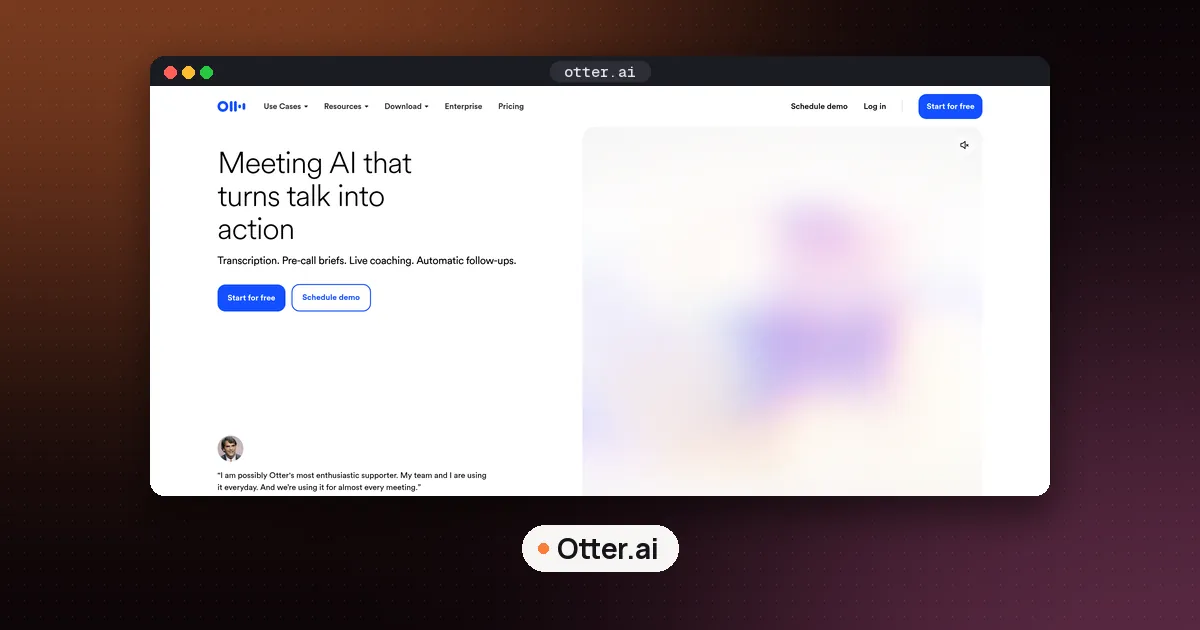
- The call is on Zoom, Google Meet or a mix of tools. Otter, Read AI and Granola cover multiplatform calendars better. Our best AI meeting note taker guide compares those options.
- You do not want a bot or a cloud transcript. Google AI Edge Foresight keeps notes on device on Mac; Granola stays bot free by design. See Google AI Edge Foresight vs Granola.
- You already live in ChatGPT. ChatGPT Record and Meetings are a separate Mac first path, not a Teams transcript.
- You need notes inside Notion. Notion AI can help reshape a downloaded transcript you paste in, but it does not replace Teams live transcription by itself.
For a head to head on two popular non-Microsoft tools, read Granola vs Otter.
FAQ
Do I need Microsoft 365 Copilot just to get a Teams transcript?
No. Live transcription is a Teams meeting feature controlled by your organization's transcription policy and by who is allowed to start transcription in that meeting. Copilot is a separate paid license for AI summaries and private prompts. If the Transcribe button is greyed out, ask your admin whether AllowTranscription is On for your meeting policy. That is usually the blocker, not Copilot.
How do I transcribe a meeting in Teams with Copilot and keep notes afterward?
Set Allow Copilot and Facilitator to During and after the meeting, start Transcribe (or let Copilot prompt you to start it), use Copilot during the call if you want, then open Recap or the meeting chat Copilot after you leave. Without a transcript, post meeting spoken content Q&A will not work.
Can I use Copilot in a Teams meeting without recording?
Yes, in two ways Microsoft documents. Start transcription only (no recording) for a saved text transcript. Or set Copilot to Only during the meeting, which uses temporary speech to text and does not keep that audio data after the call unless someone also starts a transcript. Turning Copilot Off disables recording and transcription for that meeting.
Who can download the transcript?
By default, organizers and co-organizers. With Teams Premium or Copilot, organizers can tighten who may record and transcribe when they schedule the meeting. External and anonymous guests have much tighter limits: external guests typically cannot download, and anonymous participants usually cannot start or view transcripts.
Does Copilot work in end to end encrypted Teams meetings?
No. Microsoft Learn states that Copilot in Teams meetings and events is not available in end to end encrypted meetings.
What if my meetings are not on Teams?
Use a dedicated note taker that joins Zoom, Meet and Teams, or a device local app. Start with best AI meeting note taker and compare Otter, Read AI and Granola against your privacy and calendar needs.