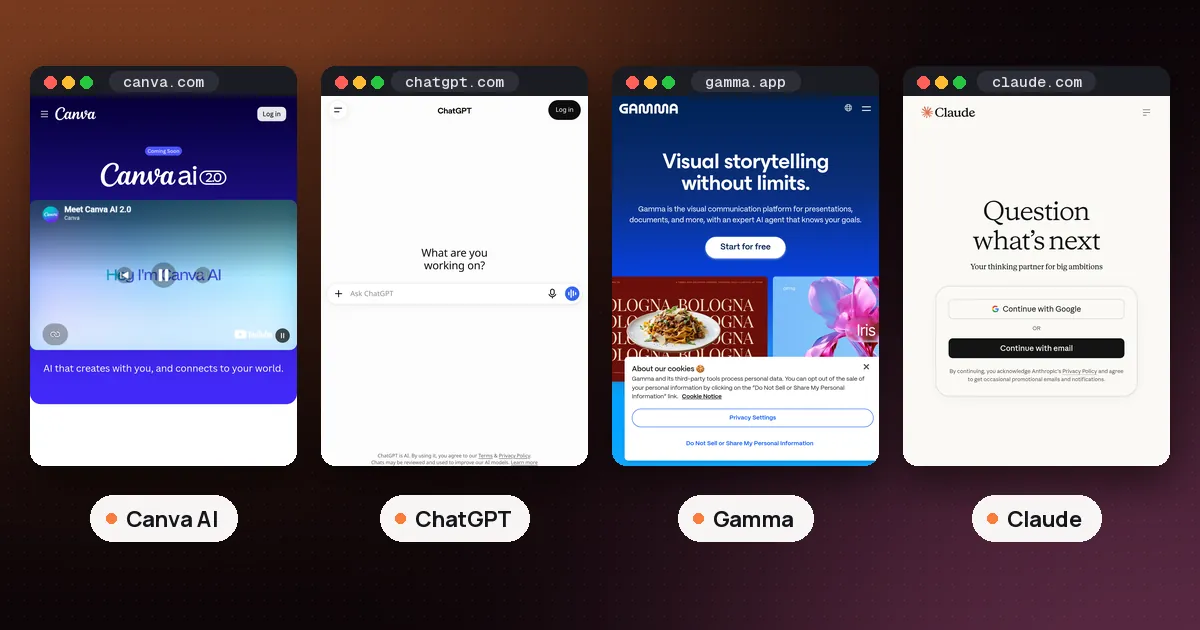
Canva AI vs ChatGPT comes down to what you need at the end: a finished visual or finished thinking. Pick Canva AI when the output is a design people will look at (a slide deck, a social post, a flyer, a one pager) and you want every element editable on a canvas. Pick ChatGPT when the output is words, analysis or a plan: drafting an email, summarizing a report, outlining a talk, or working through a problem in conversation.
Many people end up using both, and since Canva ships an official plugin for ChatGPT, you no longer have to choose one window. This guide compares the two on the jobs people actually bring to them, explains how each free plan limits AI use, and shows when the Canva plugin inside ChatGPT is the smarter route. Facts were checked against Canva's Help Center, the ChatGPT pricing page and OpenAI's help articles on October 22, 2026.
Canva AI vs ChatGPT: the quick verdict
| Job | Better pick | Why |
|---|---|---|
| Presentation with real design | Canva AI | Layered, editable slides on brand |
| Social posts and resized variants | Canva AI | Templates and one step resizing |
| Email, essay or report draft | ChatGPT | Stronger long form writing and reasoning |
| Research and summaries | ChatGPT | Deep research, file uploads, long context |
| Turning notes into a deck fast | Either | ChatGPT drafts, Canva designs |
| Brand consistency across a team | Canva AI | Brand Kit and brand checks |
The short version for readers listening rather than scanning the table: Canva wins anything visual that needs layout and brand control, ChatGPT wins anything that is mainly writing, research or reasoning, and the overlap is turning text into slides, where the plugin lets them work together.
What Canva AI actually is in 2026
Canva AI is no longer a single "Magic" button. At Canva Create 2026 the company launched Canva AI 2.0, a conversational assistant that lives in the editor. You describe a goal, upload a brief or point it at an existing design, and it builds a fully layered design you can keep editing by chat or by hand. Canva calls it a research preview, so expect the feature set to keep moving.
The parts that matter for everyday work:
- Conversational design. Ask for a client presentation or a series of social posts and Canva AI assembles them from individual objects rather than a flat image. Change one headline and only that headline changes.
- Memory Library. Canva says the assistant remembers how you work and applies your style to later projects.
- Connectors. Canva lists Slack, Gmail, Google Drive, Google Calendar, Notion, Zoom, HubSpot, Microsoft, Atlassian and Linear, so it can, for example, turn a Zoom transcript into a visual meeting summary.
- Scheduled tasks. According to Canva's getting started guide, you can schedule up to 10 tasks at a time that run daily, weekly or monthly, with a notification when each run finishes.
- Web research. Canva AI can pull information from the web straight into a design as editable content.
- Magic Write. The older writing assistant still works across Canva Docs, Whiteboards and Presentations for drafting and rewriting text inside a design.
The catch: Canva AI 2.0, Memory Library and Connectors need a paid plan (Pro, Teams, Business or Nonprofit). Canva Free and Canva for Education get the earlier AI tools, such as Magic Write, with limited monthly usage.
What ChatGPT does that Canva does not
ChatGPT is a general assistant first. Its strengths are the things that happen before anything gets designed: thinking, writing and research. According to OpenAI's pricing page, the Free plan includes unlimited text chats (subject to abuse guardrails), with limited uploads, image creation, voice chats, deep research and memory. Paid plans (Go, Plus and Pro for individuals) raise those limits and add features like scheduled tasks on Go and above, and expanded deep research on Plus.
For a productivity user, the useful pieces are:
- Long form writing and editing. Emails, cover letters, reports, essays and speaker notes. ChatGPT handles tone changes, restructuring and line edits far better than a design tool's text helper.
- Working from your files. Upload a PDF, spreadsheet or meeting notes and ask for a summary, a plan or a list of risks.
- Office extensions. OpenAI lists Excel, Word, PowerPoint and Google Sheets extensions on every plan, limited on Free and Go and full on Plus.
- Slides for some plans. ChatGPT Slides builds editable decks inside ChatGPT Space, but the pricing page lists Space for Pro only among individual plans (Business and Enterprise can get it too). Free, Go and Plus users don't get it.
- Image generation. Available on every plan with limits on Free. It makes standalone images, not layered, editable layouts.
What ChatGPT lacks is a proper design surface. It can describe a layout or produce a picture, but it doesn't give you a template library, a drag and drop canvas or brand controls across a team. That gap is exactly where Canva sits.
Is Canva AI free? How the AI allowances compare
Both tools have a free tier, and both cap the expensive features. Canva's AI usage help page explains its system as a shared monthly allowance across three tiers of tools:
- Standard AI tools (for example Magic Formulas and Image Upscaler). On paid plans these don't draw from the allowance, subject to fair use. On Canva Free and Pro Lite they do.
- Premium AI tools use more of the allowance. These include Magic Layers, generating a design or an image with Canva AI, and building interactive experiences with Canva Code.
- Ultra AI tools use the most. Conversational design with Canva AI 2.0 and creating video clips sit here.
Canva's estimates per month:
| Plan | Estimated monthly AI allowance |
|---|---|
| Canva Free and Pro Lite | Up to 20 uses of Standard or Premium tools; no Ultra tools |
| Canva Pro, Teams, Nonprofits | Up to 200 Premium uses or up to 20 Ultra uses |
| Canva Business and Enterprise | Up to 400 Premium uses or up to 40 Ultra uses |
| Canva Education | Up to 200 Premium uses or up to 20 Ultra uses |
In words: Canva Free gets about twenty uses a month of the standard and premium tools and no access to Canva AI 2.0's conversational design. Pro gets roughly ten times as much premium usage. Canva says those numbers assume simple tasks with one type of tool, and a big job (Canva's example is a 40 slide presentation versus a 5 slide one) eats more. Free trials of Pro and Business carry the same allowance as Canva Free until the trial converts. A Free allowance resets at midnight UTC on the first of each month, while paid plans reset on your billing date.
ChatGPT Free, by contrast, never runs out of plain text chat, but uploads, images and deep research are capped. So if your work is mostly writing, ChatGPT Free goes further. If your work is mostly design generation, Canva Free will run dry within a few sessions, and Pro is where the AI side of Canva becomes usable day to day. For current prices on either side, check Canva's pricing page and OpenAI's, since neither is stable for long. Students should also read is ChatGPT free for students for the current offers.
ChatGPT vs Canva for presentations
Presentations are where most people compare the two, so it deserves its own answer.
Use Canva AI when the deck is a visual product: a pitch, a client proposal, a class presentation graded partly on looks. You get templates, layered objects you can nudge by hand, Brand Kit fonts and colors on paid plans, and Canva's sharing and presenting tools. Canva AI 2.0 can also take a messy brief and return a full first draft.
Use ChatGPT when the hard part is the content: deciding the argument, cutting a 20 page report down to eight slides of points, writing speaker notes. On Free or Plus you can draft the outline and notes in chat and use the PowerPoint extension, and on Pro you can build the deck in ChatGPT Slides.
Use both when you want speed. Draft the structure and copy in ChatGPT, then hand it to Canva. For a wider shortlist that includes Gamma, Plus AI and Claude, see our guide to the best AI tools for PowerPoint.
Using Canva inside ChatGPT
The two products overlap more than the "vs" suggests. Canva has an official plugin in ChatGPT, built on its AI Connector, and Canva's help article on connecting ChatGPT says it works with every Canva account, including Free and Education.
How to set it up:
- In ChatGPT, open Settings and go to Plugins.
- Find Canva and follow the prompts to connect your Canva account.
- In a chat, describe the design you want and say you want it in Canva. Include the design type, style and any exact text.
- Pick one of the previews and open it in Canva to finish editing.
From chat you can also find existing designs, resize or copy a design, import one from a URL, or turn an image into an editable design. Searching Brand Templates needs a paid Canva plan (Education counts), and autofilling templates with your own data is a Canva Enterprise feature.
Three practical notes from the help pages. First, designs made through the plugin draw on your Canva AI allowance, not on ChatGPT's. Second, only designs you select and save show up in your Canva account. Third, Canva warns that ChatGPT sometimes produces links that look like Canva links but point nowhere, so open designs from the preview card instead. On ChatGPT Business or Enterprise, a workspace admin has to enable apps first, and on a Canva team an admin may need to allow the AI Connector.
Which should you pick?
- Students: start with ChatGPT Free for research, outlines and feedback on your writing, and Canva Free for the final slides or poster. Upgrade neither until you hit a wall. Our best AI tools for students guide has more options.
- Small business owners and freelancers: if you post on social media weekly or send client decks, Canva Pro earns its keep through templates, Brand Kit and the larger AI allowance. Use ChatGPT for the words; our ChatGPT prompts for small business has templates for that side.
- Office professionals: if most of your output is email, documents and analysis, ChatGPT is the better daily tool, and you can call Canva from inside it when a visual is needed.
- Teams with a brand: Canva, because brand controls and shared templates are its home ground.
One honest caveat for both: AI output needs review. Canva's own AI FAQ says Canva AI can make mistakes with facts, names, dates and figures, and the same applies to ChatGPT. Check numbers before a deck goes to a client or a teacher.
FAQ
Is Canva AI better than ChatGPT?
For visual work, yes: Canva AI produces layered, editable designs with templates and brand controls. For writing, research and reasoning, ChatGPT is stronger. They solve different problems, which is why Canva built a plugin for ChatGPT.
Is Canva AI free?
Partly. Canva Free includes limited AI usage, estimated at up to 20 uses a month of standard or premium tools, and Magic Write with limited usage. Canva AI 2.0's conversational design is an Ultra tool, available only on paid plans such as Pro, Teams, Business and Nonprofit.
Can I use Canva inside ChatGPT for free?
Yes. Canva says its ChatGPT plugin works with all Canva accounts, including Canva Free. Designs you generate through it use your Canva AI allowance, so a Free account will hit its monthly limit quickly.
Can ChatGPT make a Canva presentation?
With the Canva plugin connected, ChatGPT can create presentation options from your outline or files and let you open the one you like in Canva to finish. Without the plugin, ChatGPT can write the outline and speaker notes, and Pro users can build a deck in ChatGPT Slides instead.
Does Canva use ChatGPT?
Canva says Canva AI 2.0 runs on its own Canva Design Model, which it describes as a foundation model built to understand design structure. The ChatGPT plugin is a separate connection that lets ChatGPT call Canva's tools.
Which is better for students, Canva or ChatGPT?
Most students benefit from both on free plans: ChatGPT for studying, drafting and feedback, and Canva for presentations and posters. Check your school's rules on AI use before submitting AI assisted work.