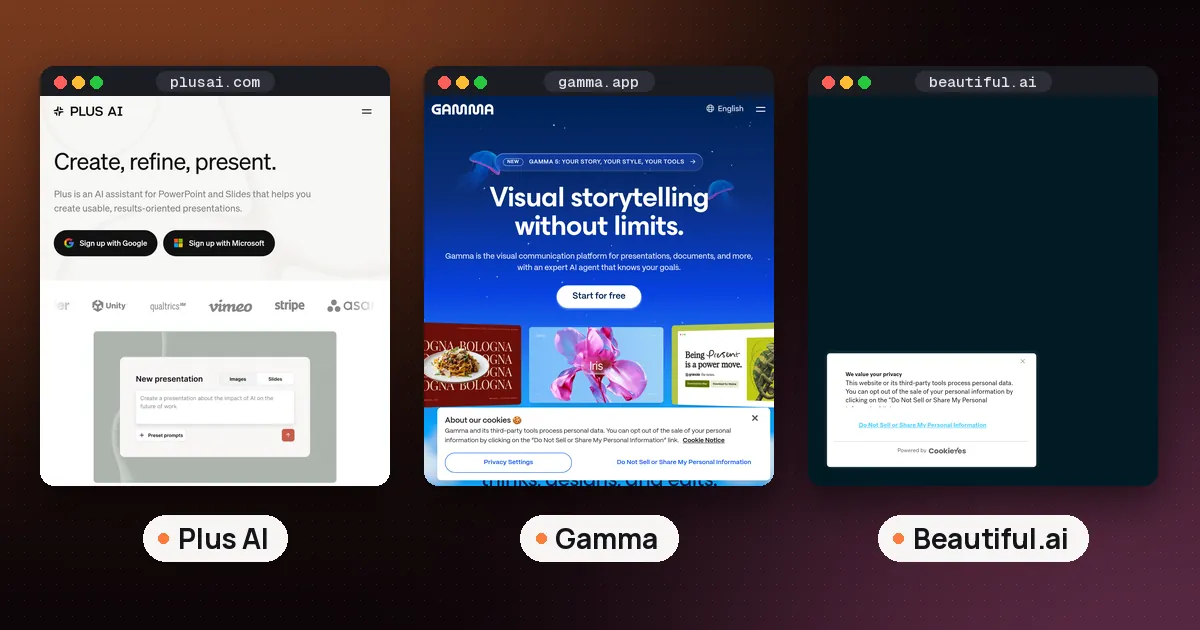
The best AI tools for PowerPoint presentation work in 2026 split into two camps: native PowerPoint AI (Plus AI and Microsoft Copilot) that builds editable .pptx slides inside PowerPoint, and web first makers (Gamma, Beautiful.ai, Canva AI, Claude Slides) that draft fast and export to PowerPoint with some cleanup. If you must stay in PowerPoint and hand a clean file to a boss or client, start with Plus AI or Copilot. If you need a polished first draft in minutes and can share a link or tidy an export, start with Gamma or Beautiful.ai.
Facts below were checked against vendor help and pricing pages on October 11, 2026. Credits, plan names, and prices change; confirm on each vendor’s site before you pay.
What's new (October 22, 2026): OpenAI added Slides to ChatGPT on October 16. Per OpenAI's release notes, you can start a deck from a conversation, files or an outline, edit text, images, shapes and charts yourself or by asking ChatGPT, edit with teammates in real time, and export to PowerPoint, PDF or Google Slides on the web. It is rolling out to eligible Pro, Business and Enterprise users with Space access, so it is not an option on Free or Plus yet. Our ChatGPT Slides guide has the step by step.
Best AI tools for PowerPoint presentation: quick picks
| Need | Best fit | Why |
|---|---|---|
| Stay inside PowerPoint with strong AI drafts | Plus AI | Native add-in; prompt or document → real PPTX slides |
| Already pay for Microsoft 365 Copilot | Copilot in PowerPoint | Built into PowerPoint; outline → deck from a topic or file |
| Fastest modern first draft (link or export) | Gamma | Free plan with AI credits; PPTX export available |
| Brand consistent traditional slides | Beautiful.ai | Smart Slides + PPT import/export; student Pro offer |
| Templates, brand kit, free design stack | Canva AI | Familiar editor; presentations plus other design work |
| Free chat → slides you can export | Claude Slides | Docs/Slides/Design on Free; export to PowerPoint |
| Already on ChatGPT Pro, Business or Enterprise | ChatGPT Slides | Team editing in Space; export to PowerPoint, PDF or Google Slides |
For a deeper walkthrough of Claude’s free slide artifacts, see How to use Claude Docs, Slides and Design free. Students comparing study and writing tools can also skim best AI tools for students.
Plus AI: the best AI presentation maker for PowerPoint natives
Plus AI is built for people who refuse to leave PowerPoint or Google Slides. It installs as a native add-in (also listed on Microsoft AppSource), then generates and edits real PowerPoint slides, not a foreign format you reimport later.
How to use it for a new deck (from Plus AI’s PowerPoint maker docs):
- Install Plus AI for PowerPoint from AppSource or PowerPoint’s Add-ins menu.
- Open a presentation, open the Plus AI sidebar, and choose a new presentation.
- Start from a prompt or upload a PDF, Word doc, text file, or similar source.
- Generate, then rewrite or remix individual slides (for example turn a paragraph into a three column layout).
- Keep editing like any normal
.pptxfile: masters, animations, and co-authoring still work the usual Microsoft way.
Plus AI pricing starts with a 7 day free trial (1,000 AI credits; a card is required). Paid plans (prices shown per user/month when billed annually on that page) include Basic at $10, Pro at $20, Team at $30, and Max at $200, with higher monthly rates if you bill month to month. Credits per month rise with the plan (for example 1,500 on Basic and 3,000 on Pro); Max is positioned as unlimited credits. Document uploads and longer prompts appear on Pro and above; custom branding and presets land on Team.
Who should pick it: consultants, teachers, and corporate teams who already live in .pptx and need AI that respects that workflow. Who should skip it: people who only want a free forever web deck and never open PowerPoint.
Copilot in PowerPoint: best if you already have Microsoft AI
Microsoft’s Copilot in PowerPoint turns a topic or attached document into an outline, then a draft deck, with help for AI images, speaker notes, and single slide inserts. The product page’s steps are straightforward: open PowerPoint → Copilot → describe the topic or attach a Word/PDF/spreadsheet → review the outline → generate → polish notes and visuals → share.
Availability depends on your Microsoft plan. Microsoft’s Copilot-in-PowerPoint overview notes access for eligible Microsoft 365 Personal or Family plans or a Copilot Pro subscription, and that free plans (and some business plans) do not include Copilot. Older Microsoft support FAQ material also notes that some create/organize features expect a Designer license alongside Copilot. Treat licensing as something you verify in your own Microsoft account before you plan a whole team rollout around it.
Who should pick it: anyone already paying for Copilot who wants AI without another vendor. Caveat: quality and template control vary; many PowerPoint heavy pros still trial Plus AI side by side for deck polish.
Gamma: best free start AI deck for speed
Gamma is a web native presentation (and docs/sites) tool. You prompt or outline, get card style slides fast, share a link, and, when you need PowerPoint, export to PPTX (Free includes export to PDF, PPTX, PNG, and Google Slides per Gamma’s pricing page). Expect some layout cleanup after export because Gamma’s card model is not identical to classic slide masters.
On Free, Gamma’s help center says new accounts get 400 AI credits with no credit card and no traditional free trial; Free credits do not refresh, though Free users can earn 200 credits per referral (cap 2,000 credits at once). Paid Plus / Pro / Ultra plans refresh monthly credits (for example Plus lists 1,000 monthly credits and Pro 4,000 in Gamma’s upgrade help). Free can generate up to 10 slides per prompt; paid tiers go higher. Exact dollar prices move. Use gamma.app/pricing rather than memorizing a blog post.
Who should pick it: founders, students, and marketers who need a sharp first draft today and mostly share links. Use it as a best AI tools for presentations pick when PowerPoint fidelity is secondary.
Beautiful.ai: best for brand safe traditional slides
Beautiful.ai focuses on structured Smart Slides that auto align as you type. Closer to classic business decks than Gamma’s web cards. Beautiful.ai pricing advertises a 14 day free trial of Pro or Team (card required). Pro is listed at $14.50/month billed annually for individuals; Team seats for 2 to 20 users are listed at $40 per user/month billed annually (or $50 monthly). Plans highlight unlimited AI content generation, 300+ Smart Slide layouts, and PowerPoint import and export.
Students with a verified .edu email can get a free annual Pro subscription via Beautiful.ai for education (new student subscribers; 12 months from activation. Confirm current terms on that page).
Who should pick it: sales, exec, and classroom decks where brand consistency and clean PPTX matter more than experimental layouts.
Canva AI: best when design and slides live in one place
Canva AI sits inside Canva’s broader design suite. You get presentation templates, Magic style generation and rewrite tools, Brand Kit controls on paid plans, and easy export paths into formats teams already use. It is rarely the deepest “PowerPoint specialist,” but it wins when the same person also makes social graphics, one pagers, and handouts.
Who should pick it: nondesigners and small teams already on Canva Free or Pro who want one AI design home, not a dedicated slide OS.
Claude Slides: best free chat to deck path
Claude can create Slides artifacts on every plan, including Free, then export toward PowerPoint/PDF as described on Anthropic’s product and pricing pages (covered step by step in our Claude Docs, Slides and Design guide). Use Claude when the hard part is thinking and wording (long briefs, careful structure, research heavy narratives) and the slide shell is secondary.
Who should pick it: writers and students who already draft in Claude and only need a slide export at the end.
How to choose: native PPT vs export workflow
Use this decision path:
- Must deliver a pristine
.pptxtomorrow? Plus AI or Copilot first. Avoid “export and pray” unless you budget cleanup time. - Share a link for feedback, convert later? Gamma or Beautiful.ai.
- Student on a budget? Gamma Free credits, Claude Free Slides, Canva Free, and Beautiful.ai’s education Pro offer are the realistic stack. Confirm each program’s eligibility.
- Heavy Microsoft shop? Try Copilot on your existing seat before stacking another subscription.
- Always edit AI copy. Models invent stats and quotes. Replace placeholder numbers with your sources.
A practical two tool pattern many teams use: draft narrative structure in Gamma or Claude, then rebuild critical client slides in Plus AI or Beautiful.ai so the final PPTX matches brand masters.
Related guides on ryza.si
- How to use Claude Docs, Slides and Design free: Free Artifacts workflow and export notes
- Best AI tools for students: study stack beyond decks
- Is Hemingway Editor free?: readability pass before you present
- ChatGPT prompts for small business: prompt templates for pitches and updates
- ChatGPT Slides: make and export a deck inside ChatGPT
FAQ
What is the best AI presentation maker for PowerPoint?
For native PowerPoint files, Plus AI is the strongest purpose built pick in this guide. Copilot in PowerPoint is the best “already included” option if your Microsoft plan already has Copilot. Web tools like Gamma and Beautiful.ai are excellent makers that export to PowerPoint rather than authoring inside it.
Are there free AI tools for PowerPoint presentations?
Yes, with limits. Gamma Free gives starting AI credits (no card) and PPTX export. Claude Free includes Slides. Canva Free covers basic presentation design with AI limits. Plus AI and Beautiful.ai use time boxed trials rather than unlimited free AI. Microsoft Copilot needs an eligible paid Microsoft plan, not a free PowerPoint only feature.
Can Microsoft Copilot create a PowerPoint from a Word doc or PDF?
Yes. Microsoft’s Copilot-in-PowerPoint materials describe creating a presentation from a topic or from an attached document (Word, and on some licenses PDF), reviewing an outline, then generating the deck. Exact file types depend on whether you have consumer Copilot Pro style access or Microsoft 365 Copilot at work. Check your tenant’s docs.
Gamma or Beautiful.ai if I need a PPTX file?
Choose Beautiful.ai when traditional slide structure and brand consistency matter after export. Choose Gamma when speed and web sharing matter more and you can clean up PPTX layouts. Many people draft in Gamma, then rebuild final client slides in Beautiful.ai or Plus AI.
How do I install Plus AI in PowerPoint?
Install from Microsoft AppSource (Plus AI for PowerPoint) or search Add-ins inside PowerPoint, open any deck, launch Plus AI, and start a new presentation from a prompt or uploaded file. Your Plus subscription covers both PowerPoint and Google Slides per Plus AI’s pricing FAQ.
Should students pay for an AI PowerPoint tool?
Not on day one. Try Claude Free Slides, Gamma Free credits, and Canva Free. If you have a .edu email, check Beautiful.ai’s student Pro year. Upgrade only when you hit credit walls or need weekly client grade decks: same habit as picking any other student AI tool in our students guide. If you are choosing between Canva and a chatbot, see Canva AI vs ChatGPT.